Developers: Normaneil Macutay
QA/Project Manager: Joy Apuya
Meeting Notes:Link
TABLE OF CONTENTS
Workflow
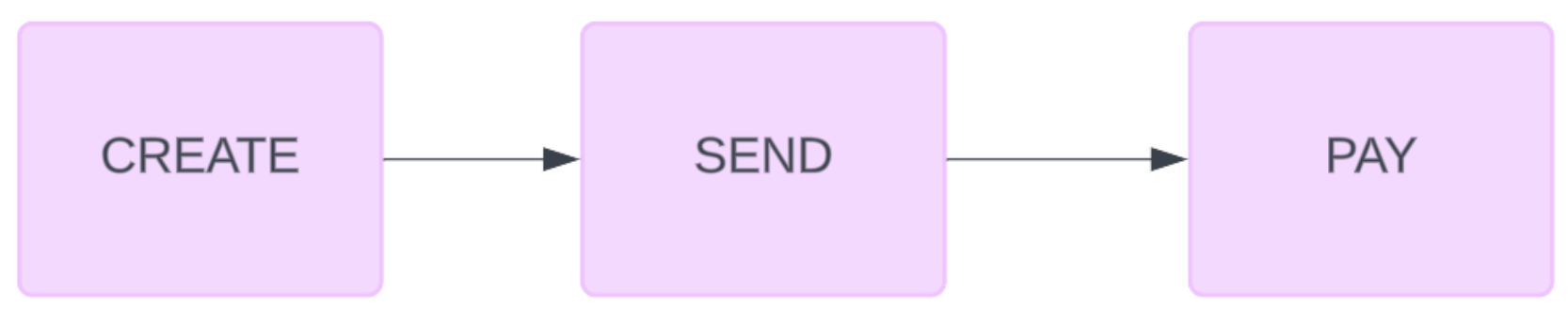
Creating, Viewing, Sending and Payment Process using RS Portal NAB Payment Facility
CREATE
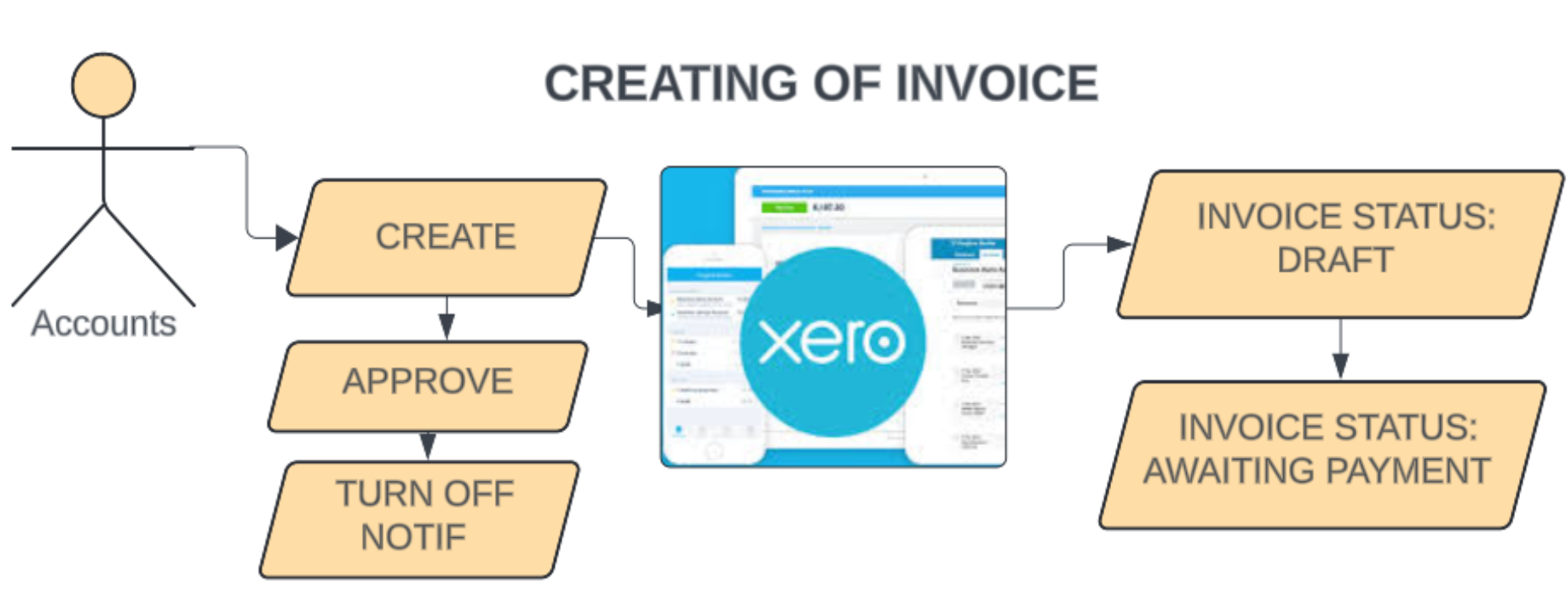
1. The Accounts Personnel will create invoice in Xero. The default status is DRAFT
2. Approve the invoice. The status will be set to AWAITING PAYMENT
3. Turn off Notification
VIEW
1. Go to Admin Portal>Client Invoice https://portal.remotestaff.com/client-invoice
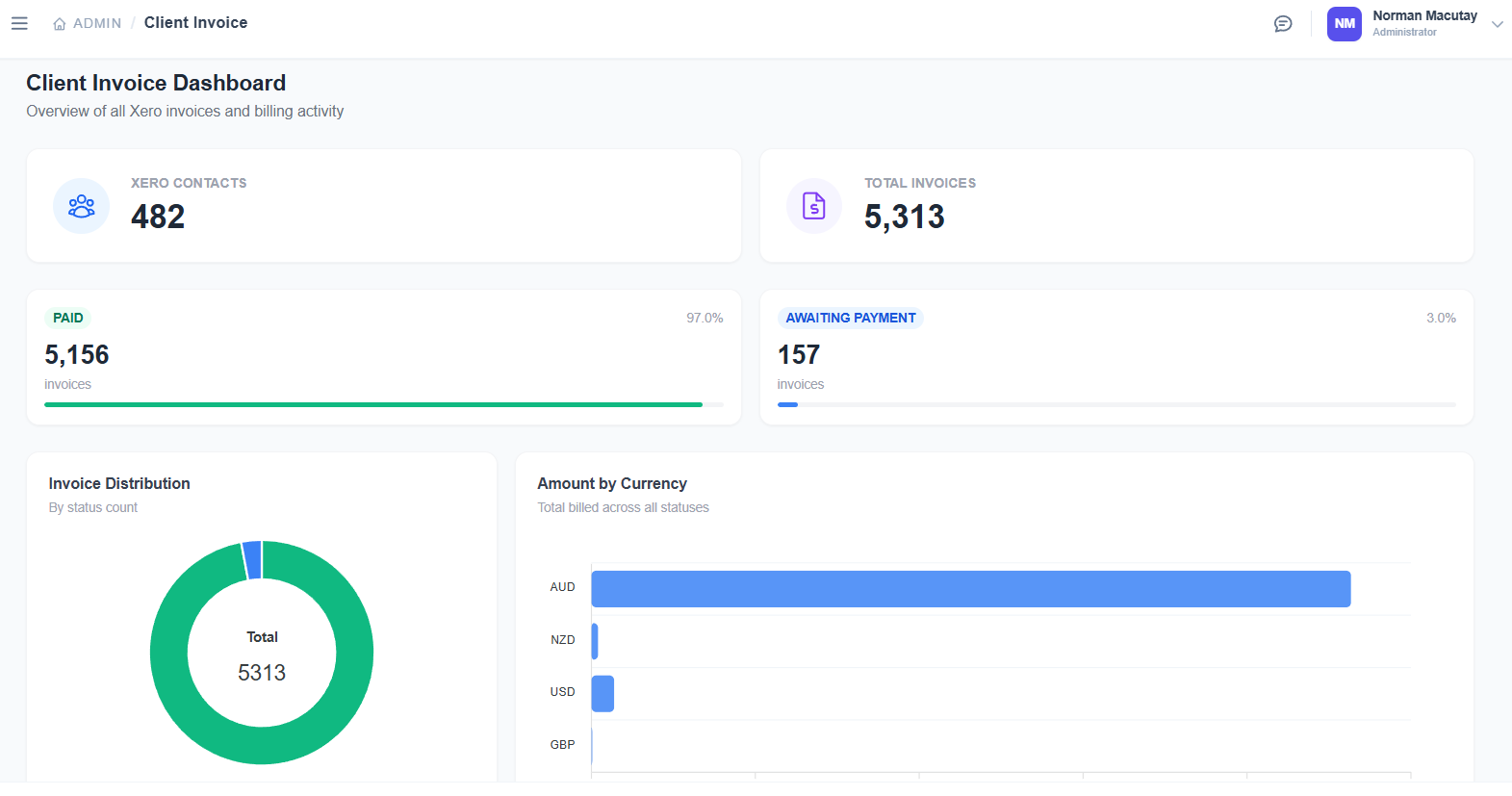
2. Navigate below the dashboard to view Invoices
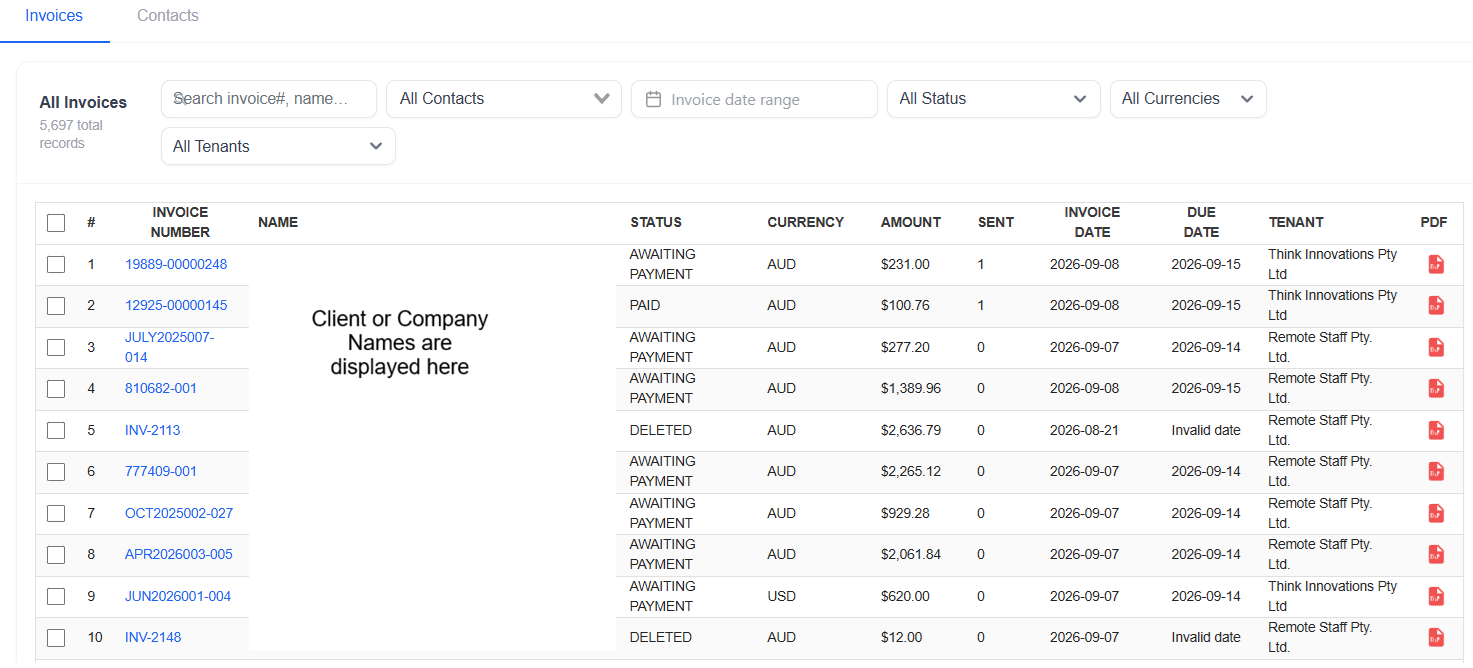
3. At Invoices tab, search for invoices by invoice number, Client Name, email address, Invoice Status, Currency and/or Tenants
4. Click the invoice to view directly the invoice or click the Name to view the Client and the list of its invoices
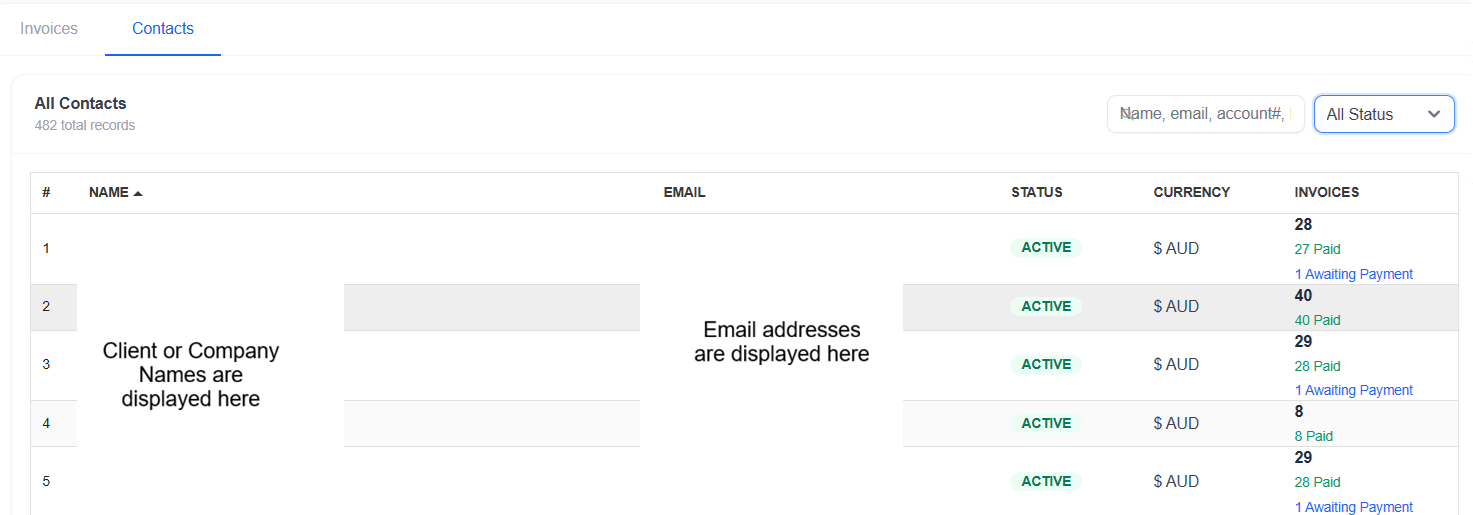
5. At Contacts tab, search for Clients by Name, email, account number and client status.
 SEND
SEND
(This process is for Finance Department Only)
1. To Select the invoice:
a. Single Send - select a single invoice by ticking the invoice
b. Multiple Send - select multiple invoice
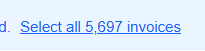
c. Mass Send - After ticking the top of the column title, it will display the total number of invoices. Click Select All [Number of invoices]
 2. Once selected, click Send Email button
PAYMENT
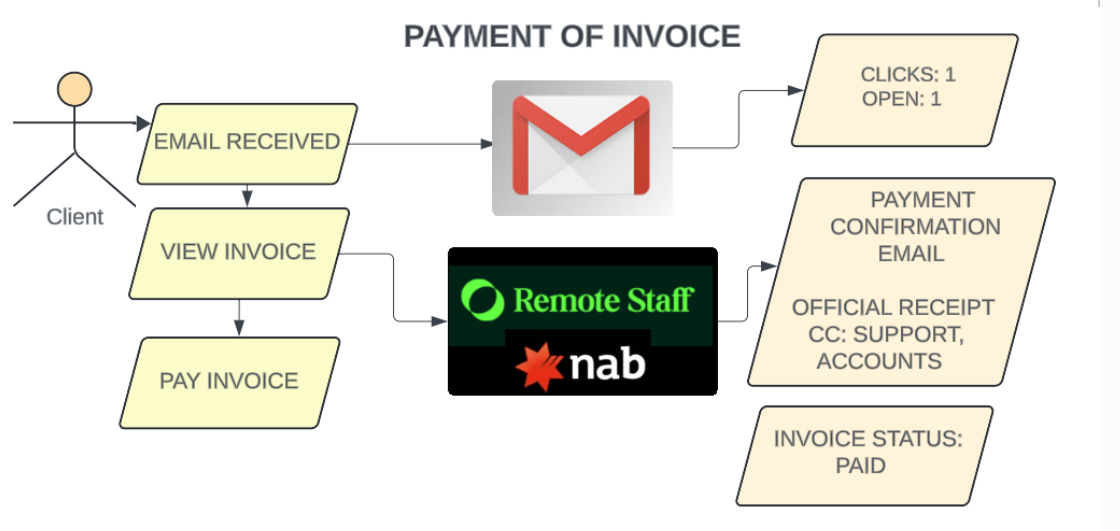
1. Once email is sent to client and received, the client will click the invoice number link and will be forwarded to payment facility
2. This is a payment facility page. Sample link: https://nab.remotestaff.com/invoice/?id=[invoice_id}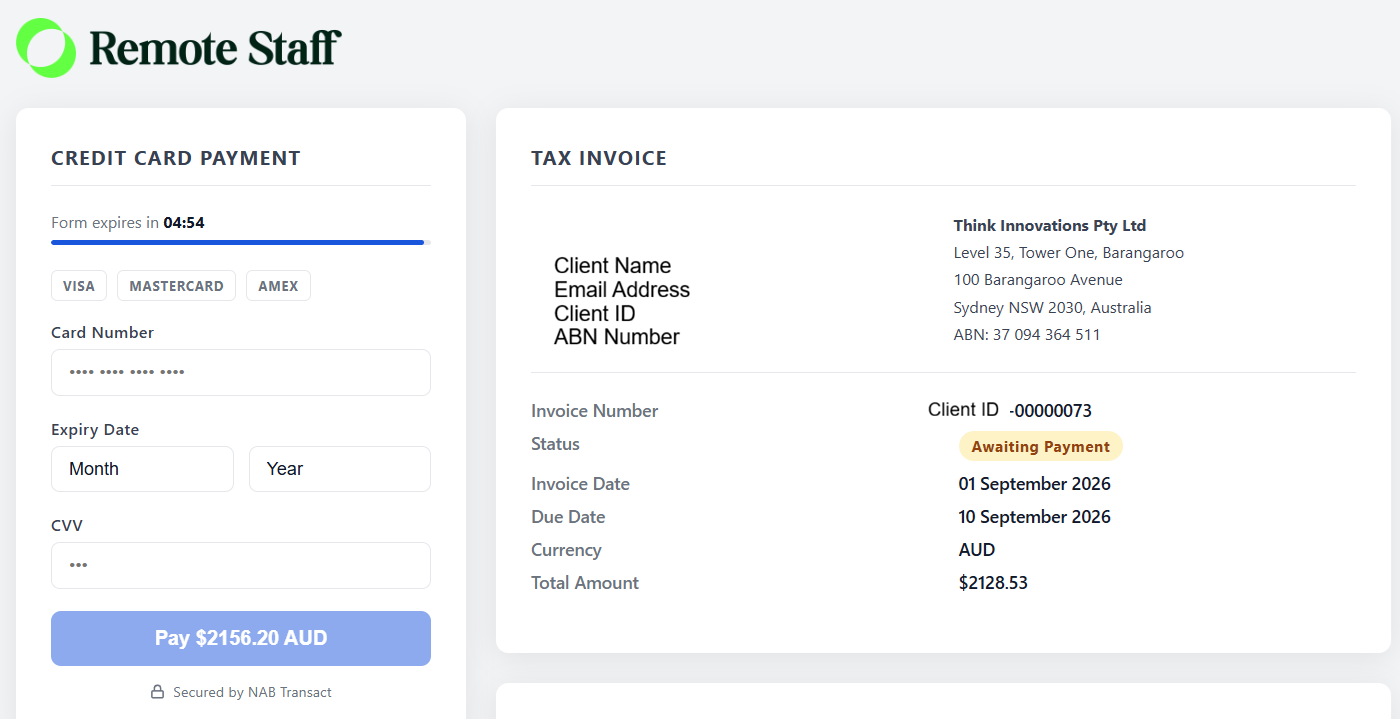
3. Once the Client pay the invoice, an official erceipt will be sent to them.
PAYMENT REMINDERS
1. Payment reminders email sending default value matrix:
2. You can update the payment reminder for each invoice by clicking on the invoice and toggling OFF/ON
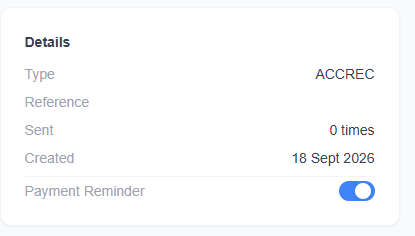 3. Payment reminder emails will be sent on the following schedule if invoice is still UNPAID:
- Day before due date
- 3 days after due date
- 7 days after due date
- 10 days after due date
Other Updates:
1. Removal of Credit Card Surcharge & Disclaimer on Client Invoices effective October 1, 2026
2. When Invoice is paid, the amount will be zeroed out effective September 3, 2026
3. RS Corp Clients included in the Client Invoice system effective September 17, 2026
Was this article helpful?
That’s Great!
Thank you for your feedback
Sorry! We couldn't be helpful
Thank you for your feedback
Feedback sent
We appreciate your effort and will try to fix the article