Before your first remote session with IT, please set up a separate account on your computer just for work, called “Remote Staff.” It takes a couple of minutes and won't affect your personal files or apps.

Follow the section for your computer below.
WINDOWS
Before you start
- You'll need your computer's admin password. If you don't know it, message IT first.
- No install needed — the file we send you is just a small script.
- Download link create_work_account.bat
Steps
- Download the file (create_work_account.bat) to your Desktop.

- Right-click it → “Run as administrator.”
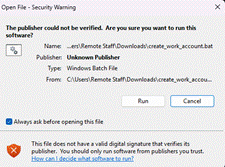
- If you see a blue “Windows protected your PC” warning, click “More info” → “Run anyway.” (This is normal.)
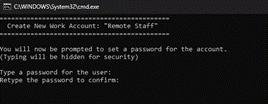
- When prompted, type a password and press Enter, then type it again to confirm. (You won't see it as you type — that's normal.)
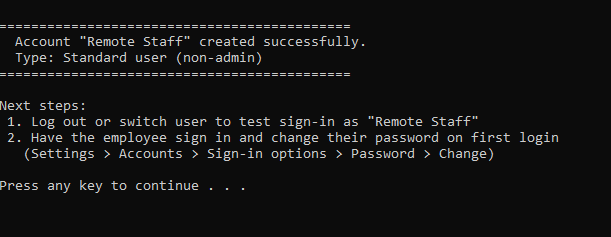
- Wait for “Account ‘Remote Staff’ created successfully,” then close the window.
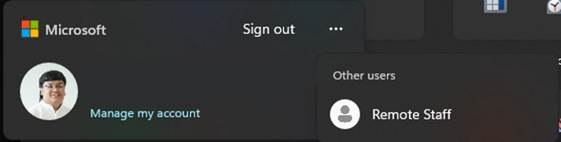
- Before your remote session: Start menu → account icon → “Remote Staff” → log in with the password you set.
If something goes wrong
- No “Run anyway” option, or anything else looks off → stop and message IT.
- “Account already exists” → no action needed, just switch to “Remote Staff” as above.
MAC
Before you start
- You'll need your Mac's admin password.
- No install needed — this uses your Mac's built-in Settings.
Steps
- Apple menu → “System Settings” (older Macs: “System Preferences”).
- Click “Users & Groups.”
- Click the lock icon or “+”, enter your admin password.
- Click “Add Account” (or “+”). Set type to “Standard.”
- Full Name: Remote Staff. Set a password, then click “Create User.”
- Before your remote session: Apple menu → “Log Out” → select “Remote Staff” → log in with the password you set.
If something goes wrong
- Lock won't unlock, or anything else looks off → stop and message IT.
- “Account already exists” → no action needed, just switch to “Remote Staff” as above.
Questions? Message IT before your scheduled session — it's always fine to ask.
Was this article helpful?
That’s Great!
Thank you for your feedback
Sorry! We couldn't be helpful
Thank you for your feedback
Feedback sent
We appreciate your effort and will try to fix the article